
How to Detect Who Modified Permissions to an Organizational Unit
Native Auditing
- Run gpedit.msc → Create a new GPO → Edit it: Go to "Computer Configuration" → Policies → Windows Settings → Security Settings → Local Policies → Audit Policy:
- Audit directory service access → Define → Success and Failures.
- Go to Event Log → Define:
- Maximum security log size to 4gb
- Retention method for security log to "Overwrite events as needed".
- Link the new GPO to OU: Go to "Group Policy Management" → Right-click the defined OU → Choose "Link an Existing GPO" → Choose the GPO that you’ve created.
- Force the group policy update: In "Group Policy Management" right-click the defined OU → Click "Group Policy Update".
- Open ADSI Edit → Connect to Default naming context → Right-click domainDNS object with your domain name → Properties → Security → Advanced → Auditing → Add Principal "Everyone" → Type "Success" → Applies to "This object and descendant objects" → Permissions → Select all checkboxes except the following and сlick "OK":
- Full Control
- List Contents
- Read all properties
- Read permissions.
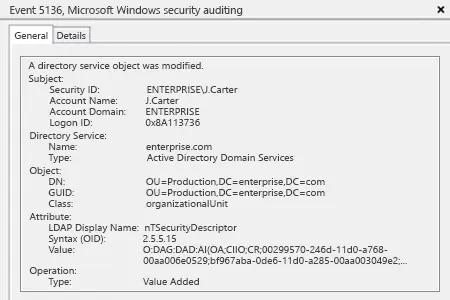
- Open Event Viewer → Search security log for event ID 5136 (a directory service object was modified).
After that you will be able to see who has modified permissions to what OU with a list of security descriptors.
Netwrix Auditor for Active Directory
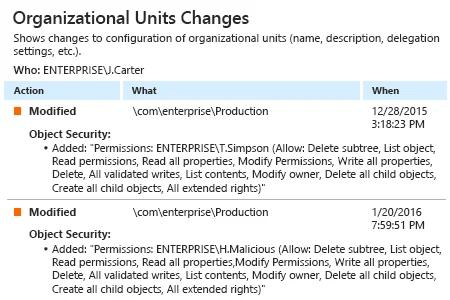
- Run Netwrix Auditor → Click "Reports" → Navigate to Active Directory → Active Directory Changes → Choose "Organizational Unit Changes" → Click "View".
- In order to save a report, click "Export button" → PDF → Save as → Choose a location to save it.
Share on