
Centre de ressourcesGuide pratique
Comment détecter qui a activé un compte d'utilisateur dans Active Directory
Comment détecter qui a activé un compte d'utilisateur dans Active Directory
Audit Natif
- Exécutez gpedit.msc → Créez un nouveau GPO → Modifiez-le : Allez dans "Configuration de l'ordinateur" → Stratégies → Paramètres Windows → Paramètres de sécurité → Stratégies locales → Stratégie d'audit :
- Auditez la gestion des comptes → Définir → Succès.
- Allez dans Journal des événements → Définir :
- Définissez la taille maximale du journal de sécurité à 4 Go
- Définissez la méthode de rétention du journal de sécurité sur « Écraser les événements si nécessaire ».
- Associez le nouveau GPO à l'OU avec les comptes utilisateurs : Allez dans "Gestion de la stratégie de groupe" → Cliquez droit sur l'OU défini → Choisissez "Lier un GPO existant" → Sélectionnez le GPO créé.
- Forcez une mise à jour de stratégie de groupe : Allez dans "Gestion de stratégie de groupe" → Cliquez avec le bouton droit sur l'unité d'organisation définie → Cliquez sur "Mise à jour de la stratégie de groupe".
- Exécutez adsiedit.msc → Connectez-vous au contexte de nommage par défaut → Cliquez avec le bouton droit sur l'objet DNS de domaine portant le nom de votre domaine → Cliquez sur Propriétés → Sélectionnez l'onglet Sécurité → Cliquez sur Avancé → Sélectionnez l'onglet Audit → Ajoutez le principal "Tout le monde" → Type "Succès" → Appliquez ceci à "Cet objet et les objets descendants" → Cliquez sur Autorisations → Sélectionnez toutes les cases à cocher sauf les suivantes :
- Contrôle total
- Lister le contenu
- Lisez toutes les propriétés
- Permissions de lecture → Cliquez sur « OK ».
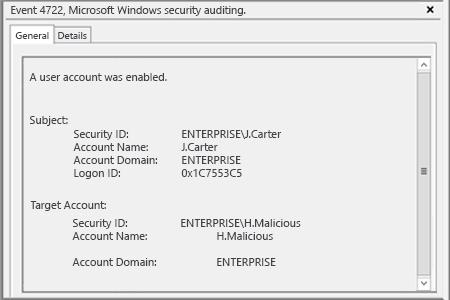
- Ouvrez l'Observateur d'événements et recherchez dans le journal de sécurité l'ID d'événement 4722 (un compte d'utilisateur a été activé).
Netwrix Auditor for Active Directory
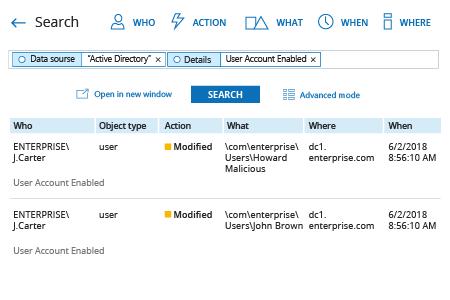
- Exécutez Netwrix Auditor → Allez dans « Recherche » → Cliquez sur « Mode avancé » si ce n'est pas sélectionné → Configurez les filtres suivants :
- Filtre = “Source de données”
Opérateur = “Égale”
Valeur = “Active Directory” - Filtre = “Détails”
Opérateur = “Contient”
Valeur = “Compte utilisateur activé”
- Filtre = “Source de données”
- Cliquez sur le bouton « Rechercher » et examinez qui a activé quels comptes d'utilisateur dans votre Active Directory.
Afin de créer une alerte déclenchée chaque fois que quelqu'un active un compte utilisateur :
- À partir des résultats de recherche, naviguez vers « Outils » → Cliquez sur « Créer une alerte » → Spécifiez le nom de la nouvelle alerte.
- Accédez à l'onglet « Destinataires » → Cliquez sur « Ajouter un destinataire » → Indiquez l'adresse e-mail où vous souhaitez que l'alerte soit livrée.
- Cliquez sur « Ajouter » pour enregistrer l'alerte.
Partager sur